Showing posts with label digital stamps. Show all posts

Spring Hello: A Digital Stamp Tutorial


Hi, it's Jean sharing a spring-themed card using digital Neat and Tangled stamps. I've used two free stamps available here.


A few months ago, I described how I use digital stamps in this tutorial. One huge advantage with digital stamps is that the images can be re-sized, which is what I've done with the card shown here. I used the same bird stamp for both the mother bird and the baby bird on this card.

While I love the look of Copic coloring AND I enjoy the process, for this card I wanted to do something different. I printed the images onto colored cardstock run through my printer.

Let's go through the steps. This tutorial explains how to create the card in Photoshop (directions in PSE would be similar). 

1) Create a 4 1/2" square document.


2) Open the digital stamp and drag it onto the canvas.


3) Duplicate the image, position onto canvas, and resize.


4) Open the sentiment stamp.


5) Drag and place the sentiment onto the canvas. Using the rectangular marquee tool, select the right-hand scroll and hit delete to remove it from the design. Repeat with the left-hand scroll.
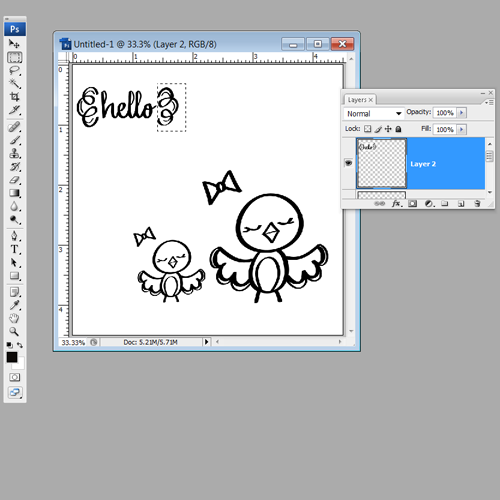

6) Delete the bow on the little bird layer by selecting it with the elliptical marquee and hitting delete. For the larger bird, select the bow with the elliptical marquee, right-click, and choose "Layer via Cut." This places the bow on its own layer. 


7) Now it's time to print. Create a letter-size document.


8) Drag all of the items from the 4 1/2" square canvas onto the letter-size canvas. Position in one corner of the canvas (in order to save paper).


9) Selectively print the layers by toggling the layers on and off as needed. 
  • Print the two birds onto white cardstock.
  • Print the sentiment and two birds onto yellow cardstock.
  • Print the small bird and bow onto blue cardstock.
  • Print the large bird onto pink cardstock.

10) Fussy cut your birds, adhere parts, and adhere the completed birds onto the white cardstock. Die cut the sentiment and adhere. Finish off with baker's twine and a colored cardstock card base!

4

Little Tangles + New FREE Digi Stamp + Reminder!

Hi friends! Little informational post here ;)

First up, the next Little Tangles challenge has started and this time it's all about L O V E, just in time for Valentine's Day :)  If you're new to Neat and Tangled, Little Tangles is the official Neat and Tangled Challenge blog! Lots of fun and free stamps up for grabs

For the occasion I thought a new digi stamp was in order! (For instructions how to use, and terms of use visit HERE)
                       
Also, I have received so many wonderful cards already!  Please please please don't forget to send in yours! If you don't know about this wonderful card drive for an awesome little boy, read this post HERE

Be sure to stop by tomorrow, Jean has some seriously inspiring cards with a great step by step photo tutorial!

1

Tutorial: Using Digital Images!


Our first challenge over at Little Tangles started yesterday, and I provided some free digital stamps in case you haven't had a chance to get some from the store yet.   I know that up until a few weeks ago I had no idea how to use digi stamps! lol  I asked the amazing Jean Manis to put together a little tutorial for you to learn how to put those cute digi stamps to work!


Using digital Neat & Tangled Stamps

Jean here to give you a quick tutorial on using the digital Neat & Tangled stamps.

The first thing needed is to save the digital images onto your computer. Right-click the image and do a “save as” to save the images into a directory.

While it is possible to work with the images in Microsoft Word, this tutorial shows using the files in Photoshop (directions for Photoshop Elements would be similar).

1) Create a new file, and choose letter-size.


2) I like to create grid lines at the center breaking the letter-size page into four sections. A typical card front would be 4 ¼” x 8 ½”, so this division provides four fronts.


3) The next step is to open the digital file.


4) Select the digital image and drag in onto the empty canvas. There is now a layer on the page with the digital file.


5) Open the sentiment digital file and drag it onto the page as well. It sits on its own layer.


6) Select both layers and duplicate.


7) Drag the two new layers into another 4 ¼” x 8 ½” part of the paper. This enables easy sizing of the components for the physical card.


8) With both layers selected, pull on one of the corners while holding the shift key to scale the images
larger. By holding the shift key, the image is equally enlarged in both the horizontal and vertical directions.


In a similar fashion, you can scale the bird smaller and duplicate it several times for printing. Before printing, fill the page with additional options


Print the file to a laser writer if you’re using Copic markers to color the image. The inks from other printers may react with your markers. Print onto cardstock and set your printer to handle the heavier paper. Another option is to take the printed page to a copy shop if you don’t have access to a laser writer.

After you've printed your images you can color, and fussy cut them just as you would a stamped image!

Using a digital image is so simple and allows for a lot of options in sizing and orientation!

2
Back to Top